Pages


Search

Saturday, 10 August 2013

Hack administrator password in windows 7 & vista


YOU CAN EASILY HACK ADMINISTRATOR PASSWORD IN WINDOWS 7 AND WINDOWS VISTA.BY FOLLOWIN THESE EASY STEPS.


1.Click on START button and type LUSRMGR.MSC on search bar..
2.Click on "Local Users and Groups(Local)"
3.Click on "Users"
3.Then Right Click On "Administrator" or "Guest' or your user name(ex- manoj), which you want to change password.
4."set password'.
5."proceed"
6.type password, confirm it
7.then restart your computer and see....


** important ** - Actually in windows 7, when a user log in to the computer he is not log in as Administrator. he log in as a user. Administrator password is used for special purposes....

How to make a undestroyable,undeltable,unrenamable folder


Try to make a new folder in windows & give it name con,aux, lpt1, lpt2, lpt3 up to lpt9. you won't be allowed to create folder with above mentioned names, Because they are reserved words in windows.
How To Create Undeletable And Unrenamable Folders ?
  1. Go to Start and then Click on Run
  2. Type cmd & hit enter (To open Command Prompt ).
  3. Remember you cannot create Undeletable & unrenamable folder in your root directory (i.e. where the windows is installed) That means you can't make this kind of folder in C: drive if you installed windows on C:
  4. Type D: or E: and hit enter
  5. Type md con\ and hit enter (md - make directory)
  6. You may use other words such as aux, lpt1, lpt2, lpt3 up to lpt9 instead of con in above step.
  7. Open that directory, you will see the folder created of name con.
  8. Try to delete that folder or rename that folder windows will show the error message.
How to delete that folder ?
It is not possible to delete that folder manually but you can delete this folder by another way mentioned below.
  1. Open Command Prompt
  2. Type D: ( if u created this type of folder in D: drive) & hit enter
  3. Type rd con\ (rd - remove directory)
  4. Open that directory and the folder will not appear because it is removed.

How to Block site for all Browsers.


      1. Start->All Programs->Accessories->Command Prompt.

2. Click Command Prompt This will open a DOS command window.

3. Type: notepad C:/Windows/System32/drivers/etc/hosts

4. Locate the line 127.0.0.1 localhost

5. To block the website google.com for example, just add this text under 127.0.0.1 localhost:

, just add this text under 127.0.0.1 localhost:


127.0.0.1 www.google.com

You can add as many sites any site, However you will need to prefix it with "127.0.0.1".

6. Save the file
Google will now be blocked in all web browser. This

For open  that sites which are Blocked
 For example, just remove this text under 127.0.0.1 localhost:

127.0.0.1 www.google.com

How to set a Video as desktop background


 Hi! friends, the topic we are talking about sounds cool..Right!! We are going to share today that how you can set any video as your wallpaper in seconds. Please note, if you have a slow PC then you are advised to try this and remove this. Others can go free and keep it.
Just follow the steps given below:
  • Download the Dream scene installer (Click here to download for free).
  • Extract and run Install_Dreamscene_for_Windows_7.exe, It will ask to choose language, select English and hit OK


Follow the steps in wizard, it will install software automatically. Now, after installation, select any .wmv(Windows Audio/Video file) video and Right click > Set As Wallpaper. It only accepts video in .wmv format.

Sunday, 21 July 2013

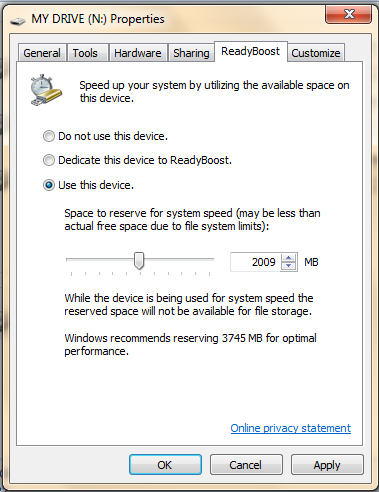
Use your Pen drive as a RAM


For using your pen drive as a RAM you have to insert your pen drive and follow these steps.

Step-1 after inserting your pen drive Right click on your pen drive and select properties 


Step-2 click on Ready boost option and click on Apply button.


Step-3 now your pen drive is ready to use as a RAM  


Tuesday, 2 July 2013

How to Change the Logon Screen on Windows 7

This time around, we are going to show you how to customize the Windows 7 login screen. There are various methods to accomplish this, with and without third-party software. I understand many people might not want to rely on a third-party application, while others would appreciate a quicker, safer route. First up is the more hands-on approach, and then the utility.
Hands-on approach
This method will require you to modify the registry.so it’s time to change your logon screen.
Step 1: Open the Windows Start menu and enter regedit into the search bar.
Step 2: Right click on HKEY_LOCAL_MACHINE and select Find.
Step 3: Search for OEMBackground, which should be in ComputerHKEY_LOCAL_MACHINESOFTWAREMicrosoftWindowsCurrentVersionAuthenticationLogonUIBackground. If the key does not exist, add a new DWORD value with the name OEMBackground.
Step 4: Double click on the entry OEMBackground, and change the value from 0 to 1.


Step 5: Open Windows Explorer and go to the following path: %windir%system32oobe.
Step 6: Create a new folder named info, and open it.
Step 7: Create a new folder within info named backgrounds.
Step 8: Rename your desired wallpaper as backgroundDefault.jpg and place it inside the folder backgrounds (images must be less than 245KB in size).


That should do the trick, now just lock your PC, log off or reboot and enjoy. 


How to rename "START" button in windows xp-2?

1. Windows 9x
The name of the Start Menu button is in explorer.exe. Since Windows won't let you modify the file, you must make a copy of it, modify the copy, then boot into DOS and replace the original file with the modified version. Make sure you back up explorer.exe before you start.

Load the file into an hexadecimal editor, and search for the following hexadecimal bytes:
53 00 74 00 61 00 72 00 74 (= "Start"). You will find these bytes more than once, but you should only have to change the last occurrence.

Replace S, t, a, r, t with whatever you want, but leave the 00's in. If your new string is shorter than "Start", you can either overwrite the extra letters with blanks, or you can change the length byte. Just before the first byte (53) there is a 00 and before it a 05: this is the string's length. If the new string is "New" then this byte should be set to 03 -- this way the Start Menu button will not be longer than the string. The new string must not be longer than the original one, else Windows will not work.

Note: The icon is in user.exe


2. Windows XP
You can use the method described above if you want: In the US version of Windows XP Pro, the string is at 0EE36F (Classic-style button) and 0EE096 (XP-style button). But instead, we are going to use Resource Hacker (542KB).

2.1. Bypassing Windows File Protection

1. In Windows Explorer, click Tools, Folder Options, then View. Uncheck Hide protected operating system files and check Show hidden files and folders.

2. There is a file named filelist.xml in \windows\system32\Restore. Right click the file, then click Properties, and uncheck Read-only. Open filelist.xml in Notepad, and add these  lines  in the end shown below, then save the file and close Notepad.

<exclude>
<rec>%systemroot%\explorer.exe</rec>
<rec>%windir%\system.ini</rec>
<rec>%windir%\tasks\desktop.ini</rec>
<rec>%windir%\win.ini</rec>
<rec>*:\AUTOEXEC.BAT</rec>
<rec>*:\CONFIG.MSI</rec>
<rec>*:\CONFIG.SYS</rec>
</exclude>

3. In \windows\system32\dllcache, you will find a backup copy of explorer.exe. Rename it to explorer.bak.

2.2. Changing the name of the Start Menu button

1. Run Resource Hacker, and open \windows\explorer.exe

2. Click String Table > 37 > 1033 (XP-style button)

3. Replace "start" with whatever you want ("Gaurav", in the picture above)

4. Click the Compile Script button.

Repeat steps 3 and 4 for String table > 38 > 1033 (Classic-style button)

5. Save the file (File>Save). Hit Cancel then Yes when Windows File Protection pops up.

Note: If an error message pops up when saving the file, kill explorer.exe (Clt-Alt-Del > Processes > explorer.exe > End Process > File > New Task), repeat step 5 (save the file in Resource Hacker), and restart explorer.exe (Clt-Alt-Del > Processes > explorer.exe > End Process > File > New Task > explorer > OK).

2.3. Changing the icon of the Start Menu button

1. Click Bitmap > 143 > 1033

2. Click Action > Replace bitmap > Open file with new bitmap (the new picture must be 25x20, and have 16 million colors).

3. Select a picture file, click Replace, then save (File>Save) your work. Hit Cancel then Yes when Windows File Protection pops up.

4. Close Resource Hacker